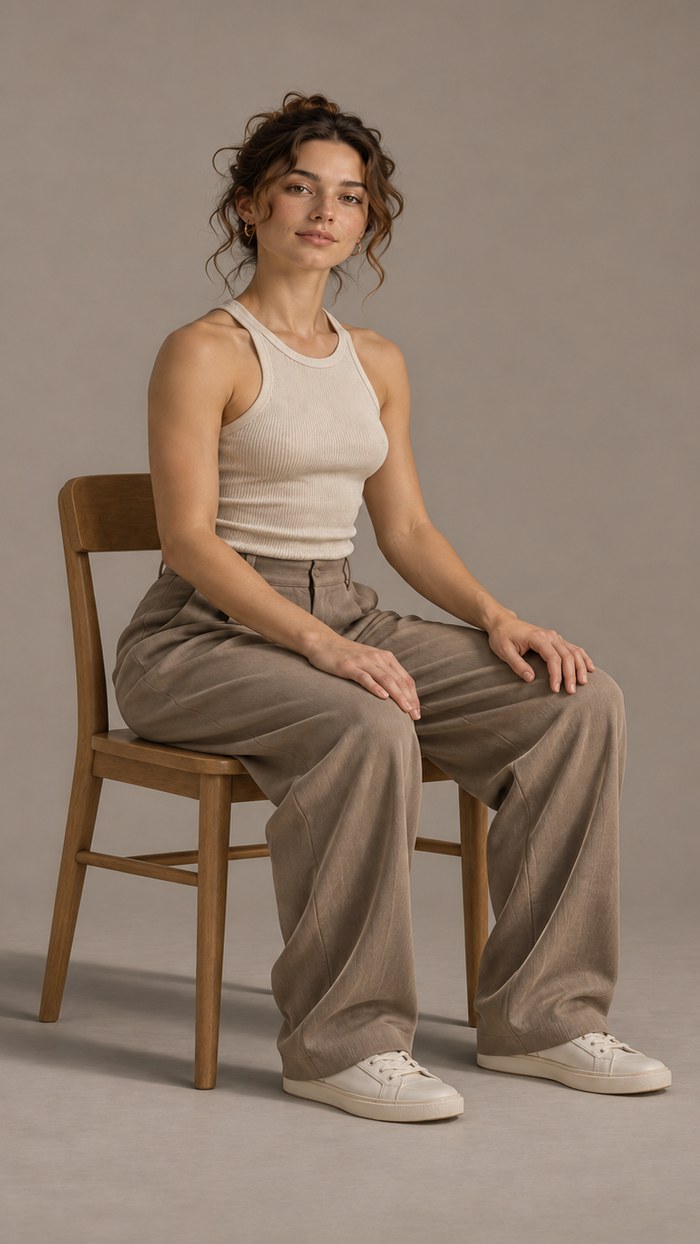
AI Pose Generator: Change the Pose, Keep the Person
Upload one photo and describe how the person should stand, sit, or move. The AI redraws the body into the new pose while keeping the same face, outfit, and background.
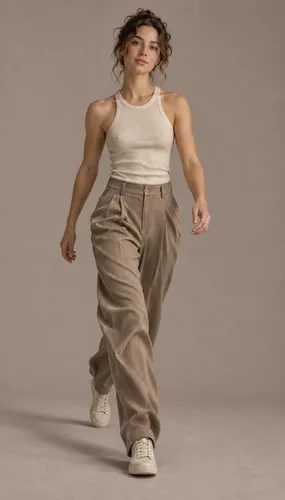
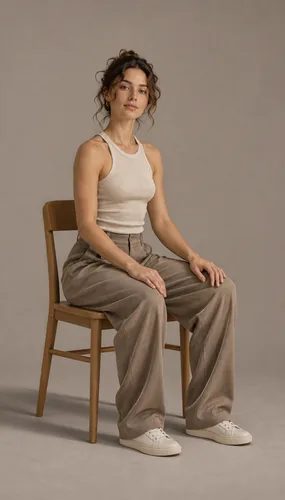
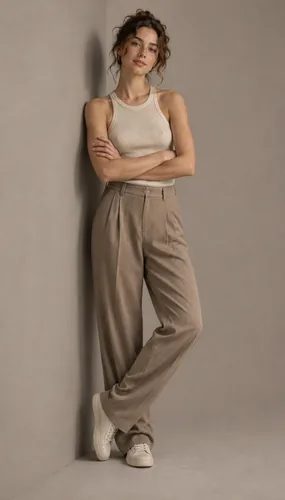
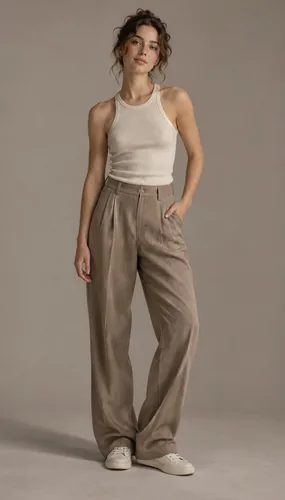
One subject, one outfit, four pose directions. These AI-generated references show what a pose change should preserve: face, clothing, body proportions, light, and background.
Pose reference
Relaxed standing — weight on one leg, hand in pocket
Pose reference
Mid-stride walk — forward motion, natural arm swing
Pose reference
Seated on a chair — forearms on thighs, feet planted
A pose generator is useful when the person and the setting already work, but the body language does not. You keep the photo as the base and change only the pose, so a stiff snapshot can become a usable portrait, lookbook frame, or drawing reference.
Standing and Full-Body Poses
Ask for a relaxed contrapposto stance, a confident fashion walk, hands in pockets, arms crossed, or a full-body editorial stance. These are the most reliable edits because the whole silhouette is visible in the source photo.
Sitting, Leaning, and Crouching
Move a standing subject onto a chair, against a wall, or down to the floor. Describe what the body is resting on, because the model needs that surface to place weight, hands, and contact shadows correctly.
Action and Mid-Motion
Request a jump, run, dance turn, or mid-stride walk. Motion poses are harder: expect to regenerate a few times, and keep the brief simple so the model does not invent extra limbs.
Angle and Framing
Pair a pose with a camera direction such as low angle, three-quarter view, or full-body framing. Changing the angle and the pose at the same time is a bigger edit, so test them one at a time.
How to Change a Pose in a Photo
Four steps from an existing photo to a pose you can compare and reuse.
1
1. Upload a Photo With a Clear Body
Use a photo where the person is fully or mostly visible, with even light and no heavy overlap from furniture, bags, or other people. A plain background and a straight-on angle give the model the most room to rebuild the body.
2
2. Describe the Pose and What to Keep
Write one pose plus the parts that must not change. For example: “Keep the same face, hair, outfit, and background. Change the pose to a relaxed standing stance with weight on the right leg, left hand in pocket.” Naming what stays is as important as naming what moves.
3
3. Choose Model, Ratio, and Resolution
Use a faster, lower-cost model to test the direction, then switch to a higher-quality model for the version you keep. Pick a portrait ratio for head-and-shoulders crops and a taller ratio for full-body poses.
4
4. Compare, Then Refine One Detail
Generate two or three directions and compare them like a contact sheet. When one works, change only one thing next: the hand position, the camera height, or the amount of movement. Changing everything at once makes it hard to tell what improved.
Start from a photo, paste one recipe, and keep the “what must not change” line intact. Every prompt below changes the body only.
1. Relaxed Standing Editorial
“Use the uploaded photo as the base. Keep the same face, hair, outfit, body proportions, and background. Change the pose to a relaxed full-body standing stance, weight on the right leg, left hand in a pocket, shoulders down, natural expression, realistic hands and contact shadows.”
2. Seated on a Chair
“Keep identity, clothing, and room unchanged. Pose the person seated on a simple chair, back straight, forearms resting on the thighs, feet flat on the floor, three-quarter view, realistic fabric folds and seat shadow.”
3. Leaning Against a Wall
“Keep the same person and outfit. Change the pose to leaning one shoulder against a wall, arms loosely crossed, one knee bent, relaxed head tilt, same lighting direction, believable contact shadow on the wall.”
4. Mid-Stride Fashion Walk
“Use the photo as the base and keep the face and outfit. Show the person mid-stride walking toward the camera, one foot forward, arms swinging naturally, coat or fabric moving slightly, full-body frame, sharp focus.”
5. Dance Turn / Motion
“Keep the same face and clothing. Capture a dance turn with arms extended, hips rotated, hair and fabric following the movement, dynamic but anatomically correct, no extra limbs, same background and light.”
6. Crouching Street Portrait
“Keep the subject and setting unchanged. Pose the person crouching on one knee, forearms on the raised knee, looking at the camera, low-angle shot, realistic knees, hands, and ground shadow.”
Related Tools
Pose is one part of a photo. These pages cover the other parts.
This tool is a prompt-driven image editor, not a 3D rig. You cannot drag joints or lock a skeleton; you describe the pose in words and the model redraws the body. That makes it fast for portraits, lookbooks, and reference gathering, but it also means difficult poses need a few attempts. Keep one person in frame, keep the brief specific, and treat the result as a visual reference rather than a guarantee of anatomy.
Prompt-Driven, Not Rigging
There are no pose sliders or joint handles. The quality of the result depends on how clearly you describe weight, limb position, camera angle, and what must stay the same.
Best With One Clear Subject
Single-person photos with visible limbs and a simple background edit most reliably. Crowded scenes, heavy occlusion, and multiple people in one prompt are where hands and bodies start to merge.
Check Before You Use It
Look at hands, feet, knees, and where the body touches a surface. Regenerate the same prompt if something is off; small wording changes often fix one problem and create another.
Pose Generator Features That Matter
The useful controls are the ones that protect the person and make comparison easy.
Identity-First Editing
The strongest prompt line is “keep the same face, hair, and outfit.” Put it first, then describe the pose. This reduces the common failure where the pose looks right but the person no longer matches the photo.
Plain-Language Pose Directions
Describe weight, limbs, and camera angle the way a photographer would. “Weight on the right leg, left hand in pocket, low angle” is more controllable than a vague request for a “better pose.”
Outfit and Background Continuity
Because the original photo stays as the base, clothing folds and room details usually carry over. Keep the brief focused on the body so the model does not redesign the outfit at the same time.
Fast Direction Testing
Generate several low-cost variations before committing to a final render. Comparing standing, seated, and action directions is faster than polishing one pose that never fit the shot.
AI Pose Generator FAQ
Practical answers about photo requirements, identity, difficult poses, cost, and usage rights.
What is an AI pose generator?
It is an image editor that changes the body position in a photo you upload. You describe the new pose in words, and the AI redraws the person while trying to keep the face, clothing, and background from the original image.
How is this different from a 3D pose tool?
A 3D pose tool gives you a skeleton you can rotate joint by joint. This page works from a photo and a text brief, so it is faster to start but less precise. Use 3D tools when you need exact joint angles; use this page when you need a believable photo variation.
What photo works best?
A clear, well-lit photo with one person, visible arms and legs, and little overlap. Full-body or three-quarter shots edit more reliably than tight headshots, because the model needs room to rebuild the body.
Can it keep my face the same?
It tries, and the result is usually close when the source photo is sharp and front-facing. Always write “keep the same face, hair, and identity” in the prompt, then check the eyes, jawline, and skin tone before using the image.
Can I change the outfit at the same time?
You can ask, but it is a larger edit. Change the pose first, then use a clothing-focused tool or a second pass for the outfit. Two smaller edits are easier to control than one prompt that changes everything.
Can it generate sitting, crouching, or action poses?
Yes, within limits. Sitting and leaning work best when you name the surface and where the hands rest. Running, jumping, and dance poses are harder and often need several attempts before the limbs and contact points look right.
Why do hands and fingers break?
Hands are small, complex, and often partly hidden. They are the most common failure in any pose edit. Keep hands visible and simply described, avoid interlocking fingers, and regenerate rather than accepting a six-fingered result.
Can it pose more than one person?
Multi-person posing is unreliable because the model has to keep several identities and body contacts consistent. For group shots, generate or edit one person at a time, or start from a group photo where the composition already works.
What aspect ratio should I use?
Use 3:4 or 4:5 for seated and upper-body poses, and 9:16 or 2:3 for full-body standing poses. Match the ratio to the source photo when possible; a big crop change makes the pose edit harder.
How much does a generation cost?
The cost depends on the model, resolution, and current site pricing. The workspace shows the credit cost for the selected model before you generate, so compare the options there rather than assuming one fixed price.
Is my uploaded photo private?
Uploads are handled by the site. Check the Privacy Policy and Terms of Service for the current retention and processing details before uploading sensitive personal photos.
Can I use the generated image commercially?
Commercial use depends on the model and the site terms, and you also need the rights to the original photo and the person’s likeness. Review the Terms of Service and keep your source material documented.
What is the most common mistake?
Changing the pose, outfit, background, and camera angle in one prompt. Pick one major change, state what must stay the same, and iterate. That produces a more believable result in fewer generations.