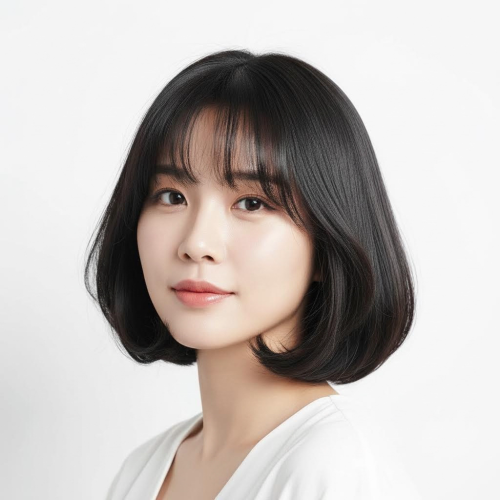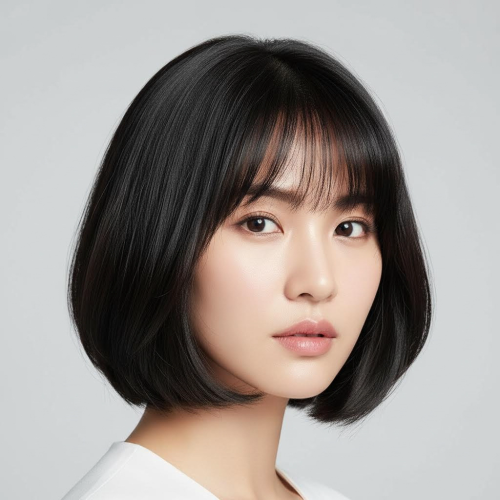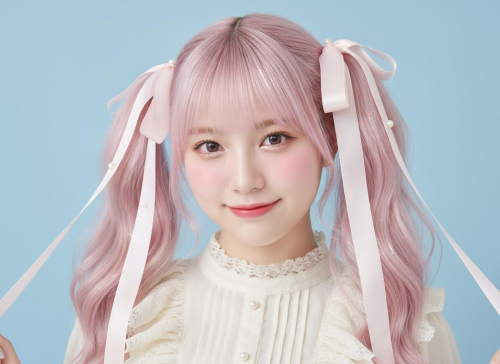
Hairstyle Changer · Photo In → New Look Out

Hairstyle Changer: See Any Cut or Color on Your Photo

Upload one clear photo and change the hair, not the face. Preview length, bangs, layers, curls, and color in a realistic portrait before you book a salon appointment.

Photo-Based PreviewYour face, your lighting, your angle
Cut + Color ControlChange shape, texture, and tone
Salon-Ready ReferenceSave the look you actually want
History
0/10000
Loading…
gpt-image-2-vip200 Credits110 Credits
Prompt Helper

Hairstyle Changer Examples

Real photo-based previews: bangs, bobs, waves, pixie cuts, and color changes. Use them to compare direction before you generate your own.
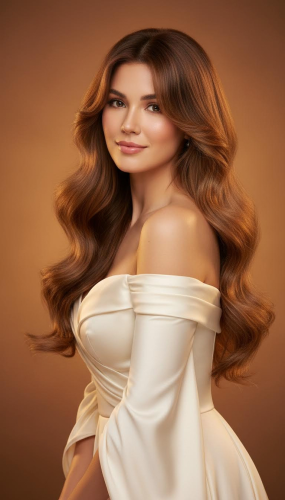
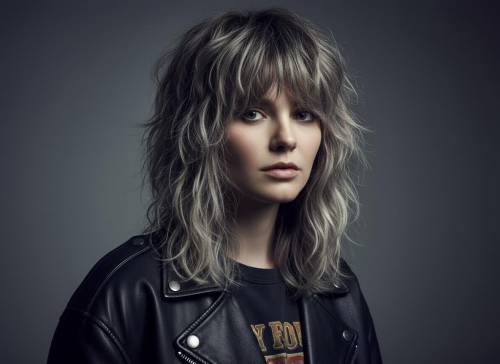
Curtain bangs + collarbone lob
Photo-based try-on

Curtain bangs + collarbone lob

Soft waves + warm brown
Photo-based try-on

Soft waves + warm brown

French bob + blunt fringe
Photo-based try-on

French bob + blunt fringe

Textured pixie + dark roots
Photo-based try-on

Textured pixie + dark roots

Long layers + ash brown
Photo-based try-on

Long layers + ash brown

What a Hairstyle Changer Can Preview

A hairstyle changer is most useful when it answers a real decision: will this cut suit my face, will this color wash me out, and will I regret the bangs? This tool keeps your photo as the base and changes the hair direction you describe.

Haircut Shape and Length

Length · shape · layers

Haircut Shape and Length

Test a French bob, collarbone lob, long layers, shag, pixie, taper fade, or textured crop. Length is the biggest visual change, so preview it before a stylist takes the first section.

Bangs and Face Framing

Fringe · parting · framing

Bangs and Face Framing

Curtain bangs, blunt fringe, wispy bangs, and side-swept bangs change the whole balance of a face. Preview them with your real forehead and hairline instead of guessing from a stranger’s photo.

Hair Color and Texture

Color · highlights · texture

Hair Color and Texture

Try ash brown, chocolate, copper, platinum, balayage, or a money piece. You can also change texture—sleek straight, soft waves, loose curls—to see how the same cut reads with different styling.

How to Change Your Hairstyle in a Photo

Four steps from a phone photo to a look you can compare, save, and show your stylist.

1

1. Upload a Photo That Shows Your Hair

Use a front-facing photo with even light and a visible hairline. Keep the full head and some neck/shoulder area in frame. Avoid hats, heavy filters, motion blur, and hair covering most of your face.

2

2. Describe One Clear Change

Name the cut, length, bangs, texture, and color in one sentence. For example: “chin-length French bob, curtain bangs, soft waves, ash brown, keep face unchanged.” Change one major element at a time when comparing options.

3

3. Choose Model, Ratio, and Resolution

Use a lower-cost model to explore direction, then move to a higher-quality model for the final preview. Pick 3:4 or 9:16 for a portrait, 1:1 for a profile image, and a resolution that shows hairline detail.

4

4. Compare, Refine, and Save

Generate two or three variations, keep the most believable one, and refine only what looks wrong. If the face drifts, simplify the prompt and add “keep face unchanged, change hair only.”

Prompt Recipes

Six Hairstyle Changer Prompts You Can Copy

Start with a photo, paste one prompt, and change only the details that matter. Each recipe keeps the face and background stable.

1. French Bob with Curtain Bangs

“Use the uploaded photo as the base. Keep face, skin tone, pose, and background unchanged. Change hair only to a chin-length French bob with soft curtain bangs, natural brown color, realistic strands, soft studio light.”

2. Collarbone Lob with Layers

“Keep the same face and lighting. Give me a collarbone-length lob with long face-framing layers, a middle part, slightly turned-out ends, and natural dark brown hair.”

3. Soft Waves and Caramel Highlights

“Change hair only: long layered hair with soft loose waves, caramel balayage, warm highlights, natural shine, keep the original face and background.”

4. Textured Pixie Crop

“Keep identity and facial features unchanged. Replace the hair with a textured pixie crop, slightly longer fringe, dark roots, natural texture, clean hairline, realistic salon photo.”

5. Men’s Taper Fade

“Keep the face, beard, and background unchanged. Change the hair to a low taper fade with a textured crop on top, natural black hair, realistic edges, same lighting.”

6. Curly Shag

“Keep my face unchanged and preserve the natural curl pattern. Change hair to a shoulder-length curly shag with defined curls, volume at the sides, and a soft fringe.”

Quick Face-Shape Starting Point

A starting point, not a rule. Use your photo and your own taste as the final check.

Face shapeUsually flatteringPreview with care
OvalCurtain bangs, lob, long layers, pixieHeavy full fringe that hides the forehead
RoundLong layers, side part, vertical volumeBlunt chin-length bob with no height
SquareSoft waves, curtain bangs, jaw-framing layersSevere straight bangs and sharp jaw-length lines
HeartChin-length bob, side-swept bangs, soft layersVolume stacked at the temples
LongLayers, bangs, cheekbone volumeVery long, flat hair with no face framing
DiamondChin-length bob, side part, soft fringeWidth at the cheekbones with tight sides

Want inspiration before choosing a cut? Generate style ideas first with the Hairstyle Idea Generator, then come back here to preview the direction on your own photo.

Imagens.App

About the AI Hairstyle Changer

This page is built for a specific job: change the hair in an existing photo so you can make a low-risk decision. It is not a random face generator and it is not a salon guarantee. The value is comparison: see a bob beside long layers, see curtain bangs beside a middle part, and see a color before you spend hours in a chair. Use the generated image as a reference, then confirm the final cut with a stylist who can assess your hair density, growth pattern, and texture in person.

Built for Comparison

Generate more than one direction and compare like a mood board, not a single make-or-break image.

Keeps the Original Photo

Your face, lighting, and background stay as the base while the hair changes.

Useful Before a Salon Visit

Bring a saved preview and a short description instead of a vague reference.

Clear Limits

AI cannot promise an exact salon result; density, curl pattern, and cutting technique still matter.

Hairstyle Changer Features That Matter

The useful controls are the ones that help you compare a real decision: cut, color, face, and spend.

Face-Preserving Hair Edits

Write “keep face unchanged, change hair only” and keep the prompt focused on hair. This reduces the common failure where the haircut looks good but the person no longer looks like you.

Face-Preserving Hair Edits
Cut, Bangs, Texture, and Color in One Brief

Cut, Bangs, Texture, and Color in One Brief

Describe the result the way a stylist would: length, shape, fringe, texture, and tone. A specific brief is faster than generating ten random hairstyles and hoping one fits.

Model and Format Control Before You Pay

Explore with a lower-cost model, then switch to a higher-quality model and resolution for the final reference. Choose the aspect ratio based on where the image will live: profile, story, or salon screenshot.

Model and Format Control Before You Pay

Hairstyle Changer FAQ

Practical answers about photo requirements, likeness, colors, limits, and pricing.

What is a hairstyle changer?

A hairstyle changer edits the hair in a photo you upload. You describe a new cut, length, texture, or color, and the AI generates a preview while keeping the rest of the photo as the base. It is useful for comparing a bob versus long layers, testing bangs, or seeing a color before a salon appointment.

How is this different from the hairstyle idea generator?

The hairstyle idea generator starts from text and creates inspiration images. This hairstyle changer starts from your own photo, so the preview keeps your face, lighting, and angle. Use the idea generator to explore directions, then use this page to see the direction on you.

What photo works best?

Use a clear, front-facing photo with even lighting and a visible hairline. Keep the full head and some neck and shoulder area in frame. Avoid hats, sunglasses, heavy beauty filters, motion blur, and photos where hair covers most of the face. A simple background makes hair edges cleaner.

Can I change hair color as well as the cut?

Yes. Add a color direction such as ash brown, chocolate, copper, platinum, balayage, or a money piece. Keep the lighting description consistent and ask for natural tones if the result looks too saturated. Color is often easier to preview than a drastic cut, so test color first if you are unsure.

Will the result still look like me?

The workflow is designed to preserve identity, but AI results can drift. Use a clear photo, keep the prompt focused on hair, and include “keep face unchanged, same pose, same background.” If the face changes, simplify the prompt and regenerate. A higher-quality model can improve hairline and skin detail, but it cannot guarantee a perfect likeness.

Can I preview bangs before cutting them?

Yes. Be specific about the fringe: curtain bangs, blunt fringe, wispy bangs, or side-swept bangs. Your original photo should show the forehead clearly. If bangs look too heavy, add “light, wispy, see-through fringe” and keep the rest of the hairstyle unchanged.

Does it work for men’s haircuts?

Yes. Use terms such as low taper fade, mid fade, undercut, textured crop, French crop, or side part. Keep facial hair unchanged unless you explicitly want to edit it, and include “same lighting, realistic hair edges” for a cleaner preview.

Can I try curly or coily hairstyles?

Yes, but describe the texture you actually want: loose curls, defined curls, coily, or natural curl pattern. If your current hair is straight and you ask for tight curls, expect a larger visual change and more variation. Keep the face and background locked in the prompt to reduce drift.

How do I write a better hairstyle prompt?

Use one sentence with five parts: base instruction, length, shape, texture, and color. Example: “Use the uploaded photo as the base, keep face unchanged, change hair only to a chin-length French bob with curtain bangs, soft waves, ash brown.” Change one major element at a time when comparing options.

Which model, aspect ratio, and resolution should I choose?

Start with a lower-cost model to explore direction. Move to a higher-quality model for the final look you plan to save. Use 3:4 or 9:16 for a portrait, 1:1 for a profile image, and a resolution high enough to judge the hairline. Credits are deducted by model, so this keeps experimentation cheaper.

Is the hairstyle changer free?

It is credit-based, not unlimited free. Each generation uses credits based on the selected model, and higher-quality models generally cost more. Explore with a cheaper model and moderate resolution, then spend more only on the final preview you want to keep.

What happens to my uploaded photo?

Uploads are encrypted and auto-deleted after 24 hours, and they are used to generate the preview you request. Avoid uploading sensitive documents or photos you do not have permission to use. Save the generated image yourself if you want to keep it longer.

Can I use the preview commercially?

Generated images can support creator and client workflows, but usage rights depend on your plan and the site terms. For commercial work, use paid credits, keep a record of the generation, and make sure you have permission to use the original photo and the person’s likeness.

Why does the hairline or ear area look unnatural?

Hairline artifacts usually come from a busy background, low resolution, or too many changes in one prompt. Use a cleaner photo, request “realistic hairline, clean edges, sharp focus on hair strands,” and avoid combining a new cut with makeup or age changes. A higher-quality model and resolution can help on the final pass.
Still have questions? Contact us at resend0@foxmail.com
✂️ Try Before You Cut

Change Your Hairstyle in a Photo

Upload one clear photo, test the cut and color you have been considering, and bring the best preview to your stylist.

Photo-based preview · Model and format controls · Encrypted uploads, auto-deleted after 24 hours

Feedback email