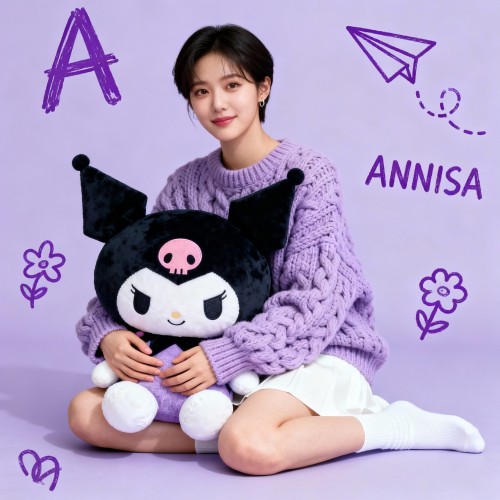
AI Image Upscaler Online

Upscale Images to HD and 4K with AI

Upload a low-resolution image and let AI improve sharpness, clarity, and detail. Use it for portraits, product photos, anime art, old web images, and AI-generated pictures that need a cleaner final version.

Output Goal
2x, HD, 4K
Best For
Photos and AI Art
Workflow
Upload, Enhance, Download

AI Image Upscaler

Upload one image, choose a model, and generate a sharper HD result.

Upload Image

JPG, PNG, JPEG, or BMP. One image per upscale task.

Required
+
Upload
Click or drop image
No available models. Enable an image-to-image model in the admin panel first.

Credit usage depends on the selected model.

Result Gallery

My Creations

Why Use Imagens.App AI Image Upscaler?

A good AI image upscaler should do more than stretch pixels. It should recover detail, reduce softness, and keep the image natural enough for websites, social posts, product previews, and print-ready creative work.

Sharper HD Output

Clearer details

Sharper HD Output

Turn small or soft images into clearer HD visuals while keeping edges, textures, and subject details readable.
Works for Many Image Types

Flexible use

Works for Many Image Types

Enhance portraits, product photos, anime images, digital art, old uploads, screenshots, and AI-generated pictures.
Simple Upload Workflow

Fast workflow

Simple Upload Workflow

Upload one image, choose a model, and generate an enhanced version without manual editing.

How to Upscale an Image with AI

Upload an image, keep the original ratio, and download a sharper result in a few clicks.

1

Upload Your Image

Add a JPG, PNG, or WebP image. Use the clearest original you have for the best result.

2

Choose a Model

Pick an available image-to-image model. The page automatically adds the enhancement instructions and keeps the original image ratio.

3

Generate and Download

Run the AI upscaler, review the result, then download the enhanced image from your task panel.

Image Upscaling Features

Built for quick quality improvements without opening a professional editor.

Detail-Aware Upscaling

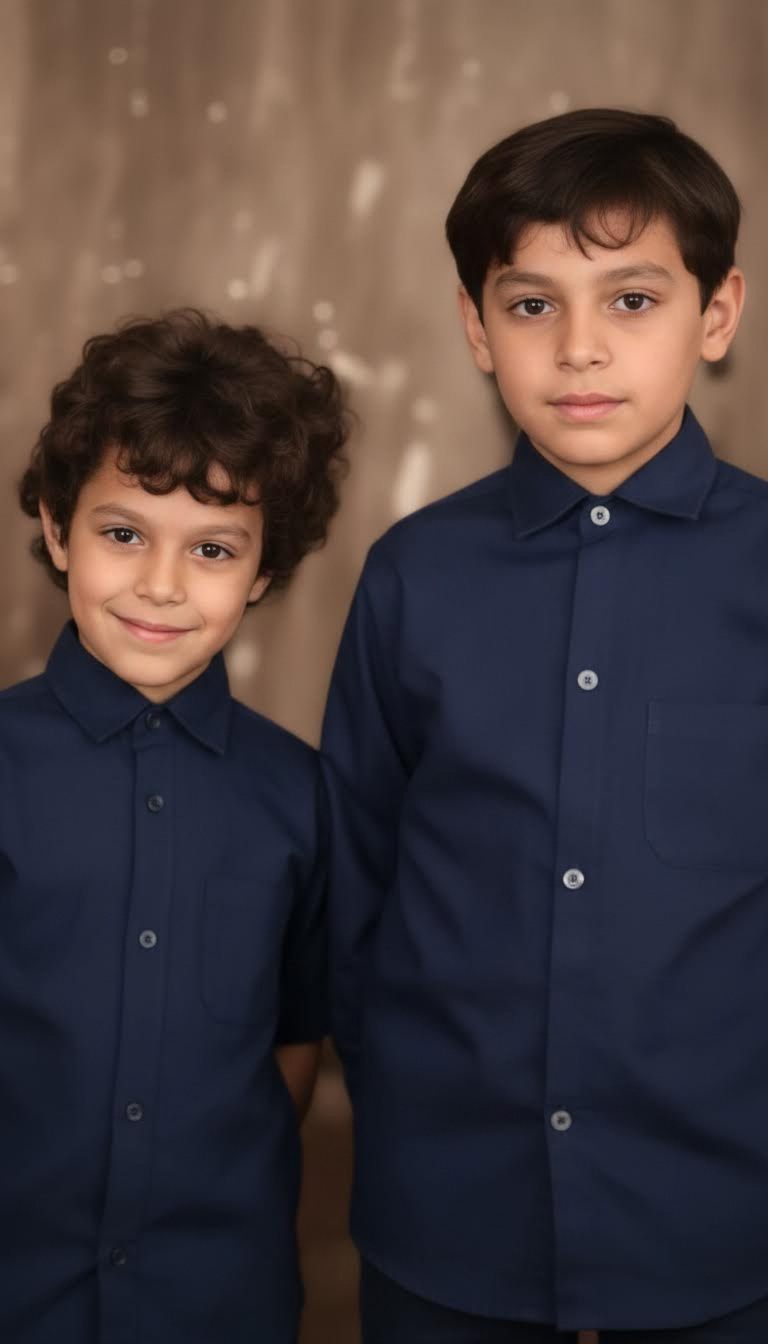
The AI image upscaler reads the subject and scene before rebuilding details, so the result looks sharper without the flat, stretched look common in basic resize tools. It is useful for old website images, small social media assets, low-resolution AI outputs, and photos that need more clarity before publishing.
Detail-Aware Upscaling
Automatic Enhancement Settings

Automatic Enhancement Settings

The page automatically applies enhancement instructions for sharp edges, recovered details, reduced blur, natural texture, and clean HD output. Users only need to upload the image and choose a model, which keeps the tool simple and reduces bad input results.

AI Image Upscaler FAQ

Common questions before using the image upscaler.

What is an AI image upscaler?
An AI image upscaler enlarges an image while using a model to rebuild missing detail. A normal resize tool only stretches existing pixels, which often makes the image blurry. AI upscaling can improve edges, textures, and clarity so the final image looks more usable for websites, social media, product previews, and creative projects.
Can I upscale images to 4K?
Yes, the automatic enhancement instructions target HD and 4K-style clarity. The final result depends on the original image quality, subject complexity, and selected model. A clearer source image usually produces a cleaner 4K-ready result.
Does it work for portraits?
Yes. Portraits are a common use case for AI upscaling. You can ask for sharper facial details, natural skin texture, clearer eyes, and reduced blur. Avoid asking for heavy beautification if you want the person to remain close to the original image.
Can I upscale AI-generated images?
Yes. AI-generated images often look good at a glance but may be too small for publishing. Upload the generated image and the page will automatically request cleaner detail, preserved composition, sharper edges, and natural texture.
Will the upscaled image stay exactly the same?
AI enhancement may rebuild details, so tiny textures or background elements can change. This page uses conservative enhancement instructions to preserve the original composition and improve quality without intentionally turning it into a new image.
What file types can I upload?
The upload area supports common image formats used by the theme workflow, including JPG, JPEG, PNG, and BMP. For best results, use a clean source image without heavy compression artifacts. WebP support depends on the browser and upload configuration.
How many credits does upscaling cost?
Credit usage is controlled by the selected AI model. Different models may have different prices and output quality. Check the model selector in the creation panel before generating so you know the estimated credit cost for the current task.
Is this better than browser-only resizing?
Browser-only resizing is fast and private, but it cannot invent detail. AI upscaling is better when you need a visibly sharper image, cleaner subject edges, or improved texture. Use browser resizing for simple dimensions, and AI upscaling when quality matters.
Do I need to write extra instructions?
No. The upscaler adds the enhancement instructions automatically, including high-resolution output, original composition, sharper details, reduced blur, natural texture, and clean HD quality. You only need to upload the image and choose a model.
Can I use the result commercially?
Commercial use depends on the image you upload, your rights to the source material, and the model terms. If you own the original image or generated asset, the upscaled result is generally suitable for your own publishing workflow. Avoid uploading copyrighted images you do not have rights to use.
Still have questions? Contact us at resend0@foxmail.com
AI Image Upscaling

Make Small ImagesLook Sharp Again

Upload a low-resolution image and generate a cleaner, larger version in minutes.

Upscale Image Now

AI powered enhancement - Model-based credit pricing

Feedback email