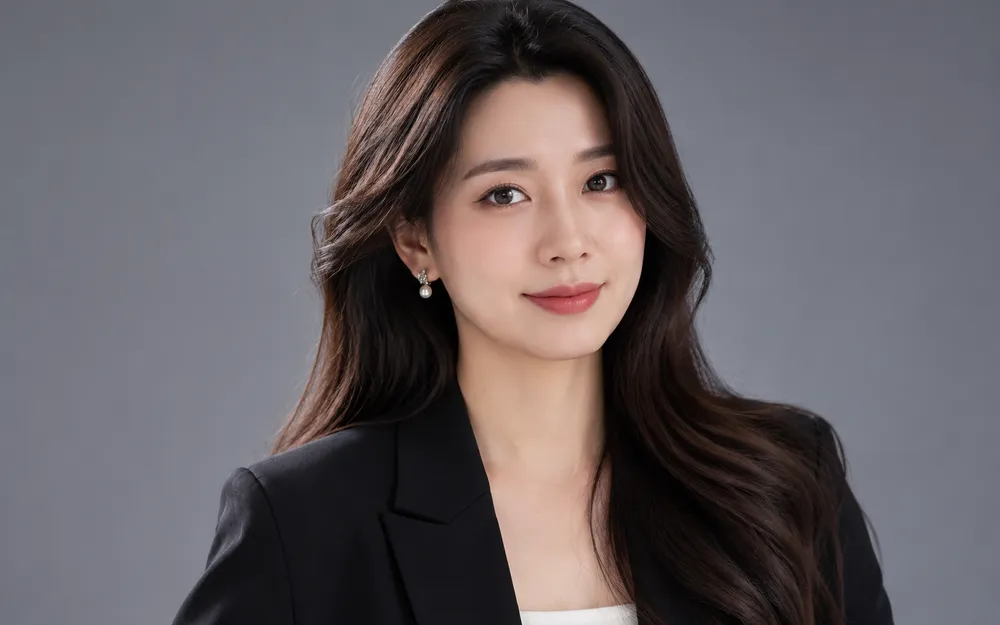
Insmind AI Headshot Generator – Create Professional LinkedIn Portraits
Create a professional headshot in minutes. Try an Insmind AI headshot generator style workflow: type your prompt, choose model + ratio + resolution, then generate a polished LinkedIn-ready portrait with credit-based pricing.
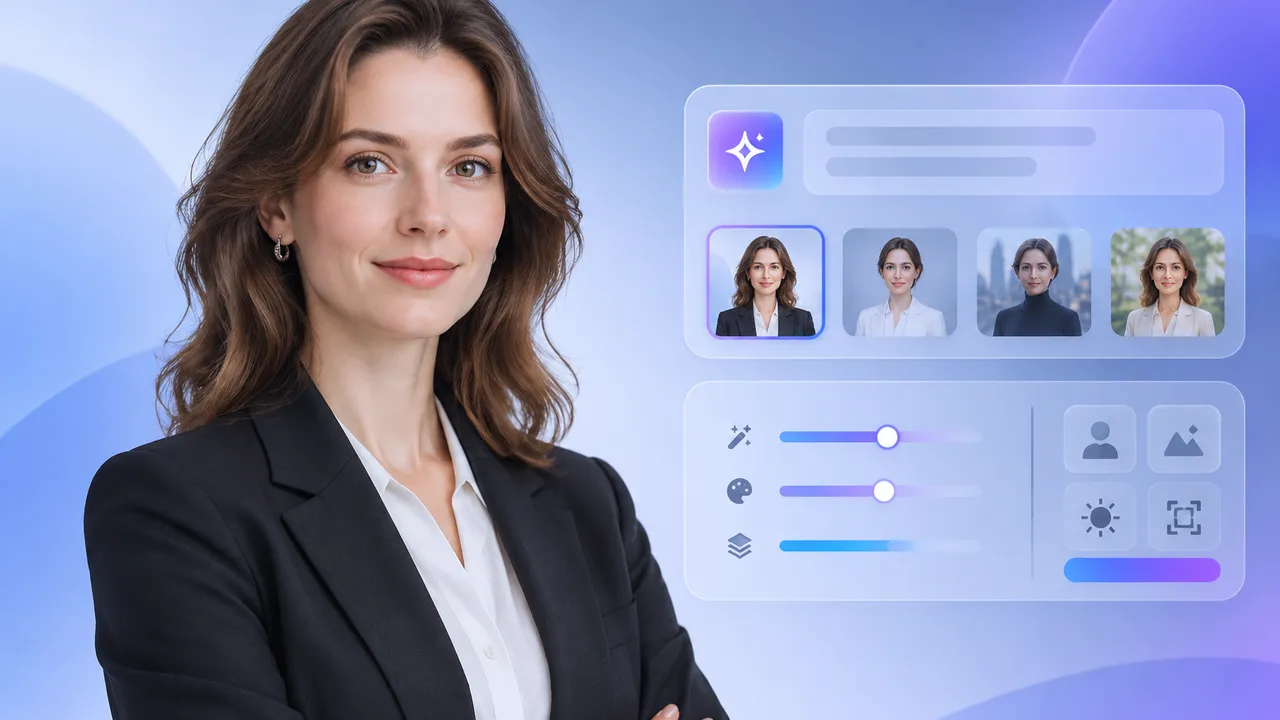
Prompt, model, ratio and resolution controlsLinkedIn-ready portrait workflowCredit cost shown before generation
Why Choose Imagens.app for an Insmind AI Headshot Generator Workflow?
If you want an insmind ai headshot generator free online experience with more control, you are in the right place. Generate a polished, professional headshot by simply writing a prompt, picking an AI model, and choosing the aspect ratio and resolution you need for LinkedIn, resumes, and business profiles.
Business-first results.
LinkedIn-Ready Headshots
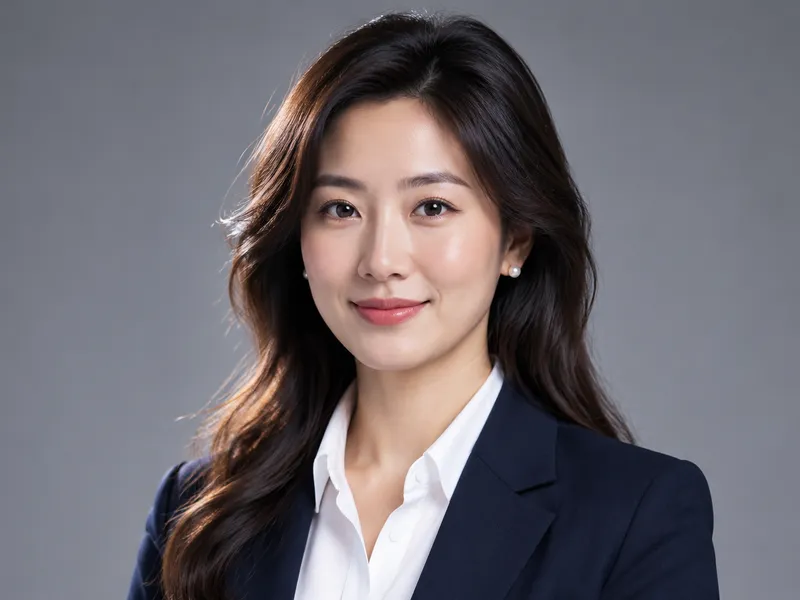
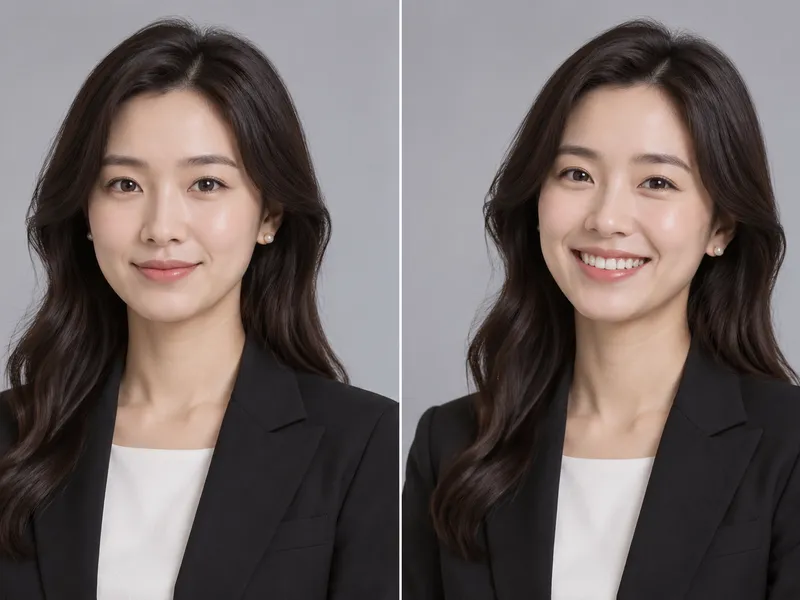
Get a clean, professional headshot that fits modern LinkedIn standards: natural skin texture, studio-style lighting, and a background that looks believable. You control outfit, mood, and industry (tech, finance, healthcare, real estate) with a simple text prompt, so your portrait matches your role instead of looking like a generic AI profile picture.
Settings that matter.
Model + Ratio + Resolution Control
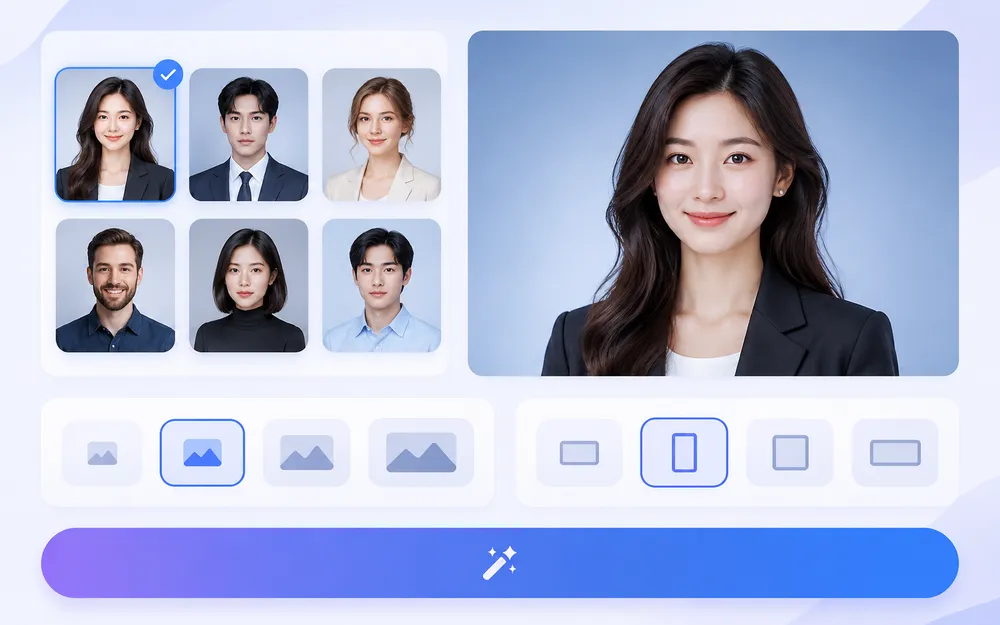
Unlike many “one-click” tools, this insmind professional headshot generator alternative lets you choose the AI model, the image ratio, and the output resolution before you generate. That means you can produce a crisp square avatar for LinkedIn, a slightly taller portrait for resumes, or a wider crop for banners—without redoing everything after the fact.
Pay for quality.
Credit-Based, Transparent Pricing
Headshot generation is billed by credits and varies by model. Pick a lightweight option for fast drafts, or select higher-quality models (for example, nano-banana-pro style performance) when you need premium realism. You always see the credit cost before you generate, so you can balance budget and quality like a pro.
How to Generate a Professional Headshot Online
A simple, insmind ai headshot generator online flow: prompt → settings → generate.
1
Write Your Headshot Prompt
Describe the look you want: role, outfit, background, lighting, camera style, and vibe. Example: “professional LinkedIn headshot, navy blazer, soft studio light, neutral gray background, natural smile”.
2
Choose Model, Ratio, Resolution
Select the AI model that matches your quality goals, then set the aspect ratio and resolution for your use case (LinkedIn profile photo, resume, business site, or team page).
3
Generate, Download, Iterate
Click Generate to create your headshot. If you want a different background, a more confident expression, or a warmer tone, tweak the prompt and generate again until it looks perfect.
About Imagens.app - Insmind AI Headshot Generator Alternative
Imagens.app helps you create a professional headshot like insmind ai—without the guessing. This insmind ai portrait generator style tool turns your text description into a realistic, business-ready portrait. Pick your AI model, set the ratio and resolution, and generate a LinkedIn-ready headshot that looks polished, confident, and consistent across your personal brand.
Built for LinkedIn
Natural lighting, clean backgrounds, and realistic detail for professional profiles.
Flexible Output
Choose aspect ratio and resolution so the headshot fits every platform and layout.
Multiple Models
Use fast drafts for iteration and premium models for final quality.
Business-Friendly Rights
Use generated portraits for resumes, team pages, and marketing when created with paid credits.
Simple Workflow
Type a prompt, adjust settings, generate, and download—no photo editing tools required.
Key Features for Professional AI Headshots
Everything you need to create a strong first impression with an insmind ai headshot generator free online style flow.
Prompt-to-Headshot With Real Control
Most “free ai headshot generator like insmind” pages feel magical until you need something specific. Here, you can steer the result with practical settings: select the AI model that matches your goal, lock in the aspect ratio for where the image will live, and choose the resolution so the final portrait stays sharp after cropping. You can specify outfit, hairstyle, background color, studio lighting, and expression in plain English, then iterate quickly. This keeps your output consistent across LinkedIn, resumes, About pages, and team directories—without a design tool, and without spending credits on blind guesses.
Quality That Holds Up in Business Contexts
A professional headshot is judged at thumbnail size and at full size. Our insmind ai business headshot generator approach prioritizes believable lighting, clean edges, and natural facial detail, so the portrait doesn’t look overly smooth or “cartoonish.” Choose a premium model when you need realism, then generate at higher resolution for crisp hair strands, fabric texture, and clean separation between subject and background. This makes your profile picture look trustworthy on LinkedIn, consistent on company pages, and sharp in press kits. Pricing is credit-based and varies by model, so you can draft cheaply and finalize with quality when it matters.
Frequently Asked Questions
Everything you should know before you generate a professional headshot.
Is this an insmind ai headshot generator free tool?
You can use the page online for free, but image generation is credit-based and depends on the AI model you choose. Think of it as a “free to try” workflow: you can write prompts, preview options, and see the credit cost before generating. When you click Generate, credits are deducted based on model and output settings. This makes pricing predictable for business use: draft with a faster, lower-cost model, then switch to a premium model for the final LinkedIn-ready professional headshot.
How do I get a LinkedIn-ready headshot that looks real?
Start with a clear, realistic prompt: include “ultra realistic professional headshot,” specify studio lighting, and choose a clean background color. Add outfit details (navy blazer, white shirt) and a natural expression (confident smile, relaxed). If the face looks too smooth, ask for “natural skin texture” and “realistic pores.” For the best result, select a higher-quality model and generate at a higher resolution, then crop to a square for your LinkedIn profile picture.
What should I write in the prompt for a business headshot?
A strong headshot prompt describes five things: role (software engineer, consultant), wardrobe (business casual or suit), background (neutral gray, office blur), lighting (soft key light + rim light), and camera style (85mm lens, shallow depth of field). Example: “professional corporate headshot, navy blazer, neutral background, soft studio light, realistic photography, 85mm lens, sharp focus.” If you want a specific vibe, add “approachable,” “executive,” or “startup founder.”
Can I choose aspect ratio and resolution before generating?
Yes. This page is built around control: choose an aspect ratio for the platform you’re targeting, and set the output resolution to keep details sharp. A square crop works best for LinkedIn and most profile pictures, while a taller portrait can be helpful for resumes or media kits. Higher resolution is recommended when you plan to crop tighter, since it preserves facial detail and keeps edges clean. You can regenerate with different ratios without rewriting the entire prompt.
How is pricing calculated and why does it vary by model?
Pricing is credit-based and tied to the model you select. Faster models are great for exploring ideas and quickly iterating on background, outfit, and expression. Higher-quality models require more compute, so they cost more credits—but they usually produce better realism, cleaner lighting, and more professional-looking results. Before you generate, you’ll see the credit cost. This lets you decide whether you want a quick draft or a premium headshot for a LinkedIn profile and business use.
Can I generate a headshot similar to Insmind AI style?
Yes. If you like the insmind ai headshot generator look, ask for “clean studio background,” “soft flattering light,” and “professional corporate portrait.” You can also add a subtle color palette (cool gray, warm beige) and a modern photography vibe (high-end editorial). Because you can select models and resolution, you can often achieve a more polished result than a one-click tool. If you want consistency across multiple team members, reuse the same lighting and background prompt structure.
Will the headshot work for resumes, company pages, and business websites?
That’s the goal. A business headshot needs to look trustworthy at small size and sharp at full size. Use realistic prompts and avoid overly stylized keywords unless you want a creative portrait. For team pages, keep backgrounds and lighting consistent across all people. Generate at a higher resolution, then crop to match your layout. If you need a white or transparent background, mention it explicitly in the prompt, then fine-tune with another generation if edges need improvement.
How do I avoid weird hands, distorted clothing, or unnatural eyes?
For headshots, keep the frame tight: “head and shoulders, no hands in frame” removes most hand artifacts. Specify “symmetrical face, natural eyes, realistic gaze” and “clean collar and lapels” for clothing. If you see distortions, reduce complexity: choose a plain background, simpler outfit, and fewer accessories. Also try a higher-quality model for the final pass; premium models typically handle facial structure and fabric details better. Iteration is normal—small prompt tweaks make a big difference.
Do you store my prompts or generated headshots?
Your generation runs through our AI pipeline and is displayed in your results panel. For typical operation, we may keep generation records to support your history, downloads, and billing (credits). If you’re generating sensitive images, avoid putting personal data in the prompt. Use general descriptors instead of full names or private information. If your account has history features enabled, you can manage your generated results from your tasks/gallery area. Business users often prefer predictable, reusable prompts without personal identifiers.
What’s the best workflow to get a headshot I’d actually pay for?
Start with a draft: choose a faster model, generate once, and evaluate three things—face realism, lighting, and background. Then refine the prompt: lock wardrobe, set a clean background color, and request natural skin texture. Once it looks close, switch to a higher-quality model, increase the resolution, and generate again for the final. This two-step approach usually costs fewer credits than repeatedly generating premium outputs from the start, and it produces a headshot that looks credible on LinkedIn and business profiles.
Create an insmind ai headshot generator online style portrait: choose a model, set ratio and resolution, and generate a LinkedIn-ready business headshot in minutes.